 TaskDeck
Stop Searching.
Start Designing.
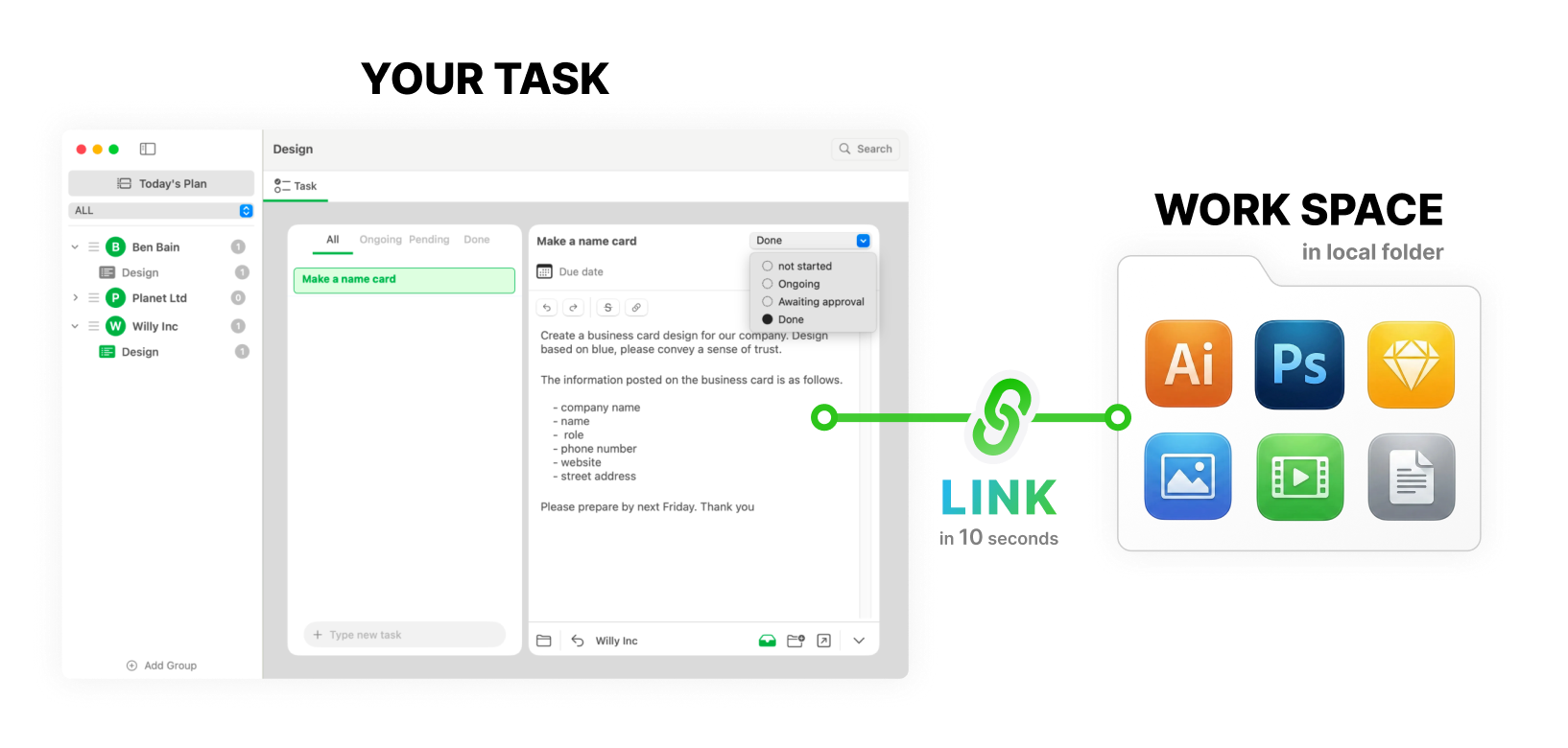
The only task manager specifically built for Freelance Designers on macOS. Link your tasks to your project files in 10 seconds.
A Beautifully Simple Design
Do you want to concentrate on designing? If so, we are here for you. Its simple and stylish UI helps you work efficiently.
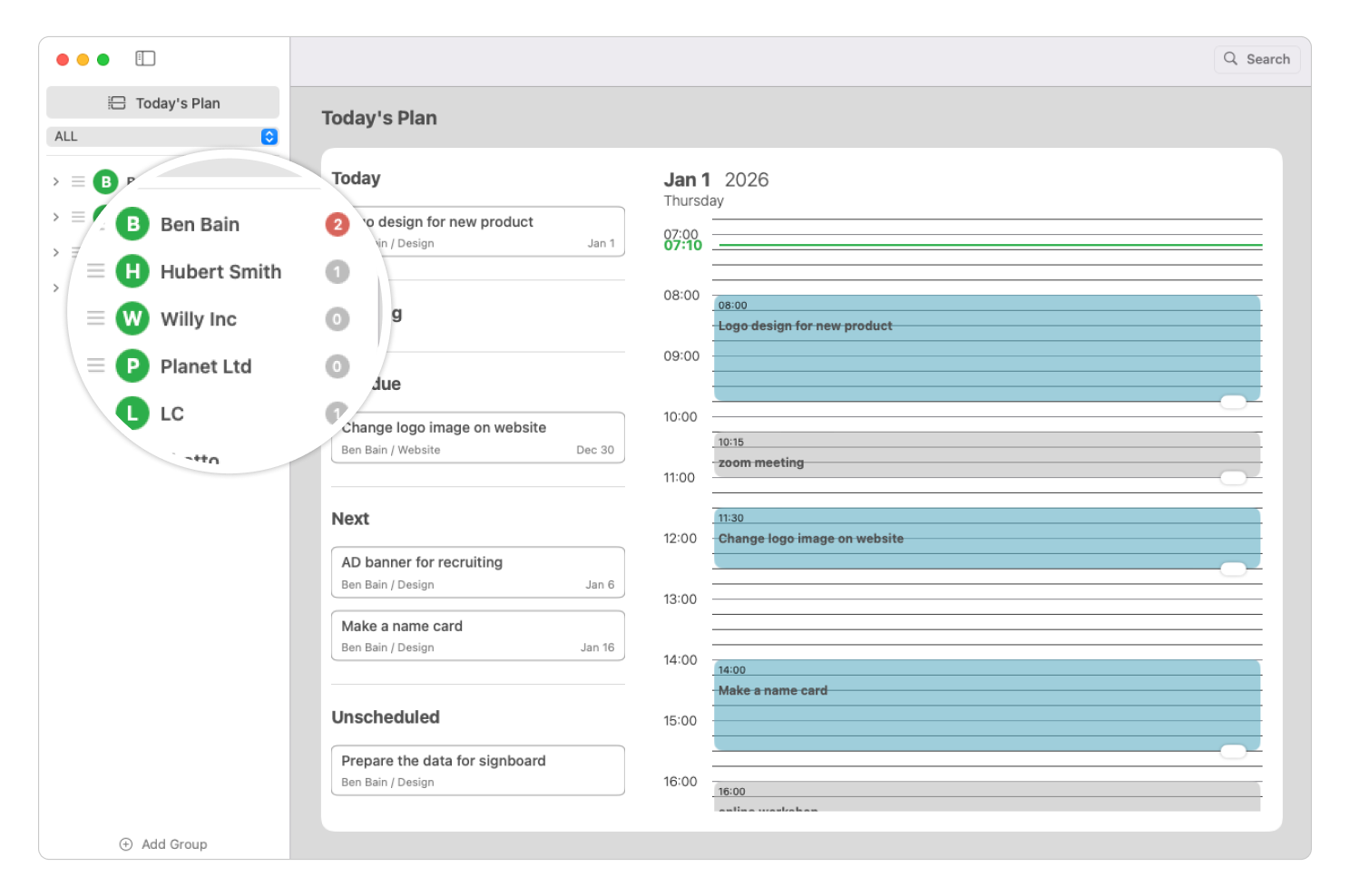
All Tasks — Completed or Not — are Important
In most task management Apps, tasks are thought to be useful for a limited time only. That’s understandable. Think of tasks such as buying a bottle of milk at a store, or sending an email to your client. Once those tasks are done, they are no longer important. You don’t need to look back at them after a week, month or year.
However, this is NOT the case for freelance designers. Let’s say you created a banner image for your client and he liked it. Now you’ve got another request from him: to create a new banner image with a different background, or to change a pricing but keep the other design the same. You will need to look back at previous tasks that have been done before.
In TaskDeck, we take completed tasks as important as ongoing tasks. Completed tasks are kept in a way like an ‘archive’. You can easily find them anytime you need.
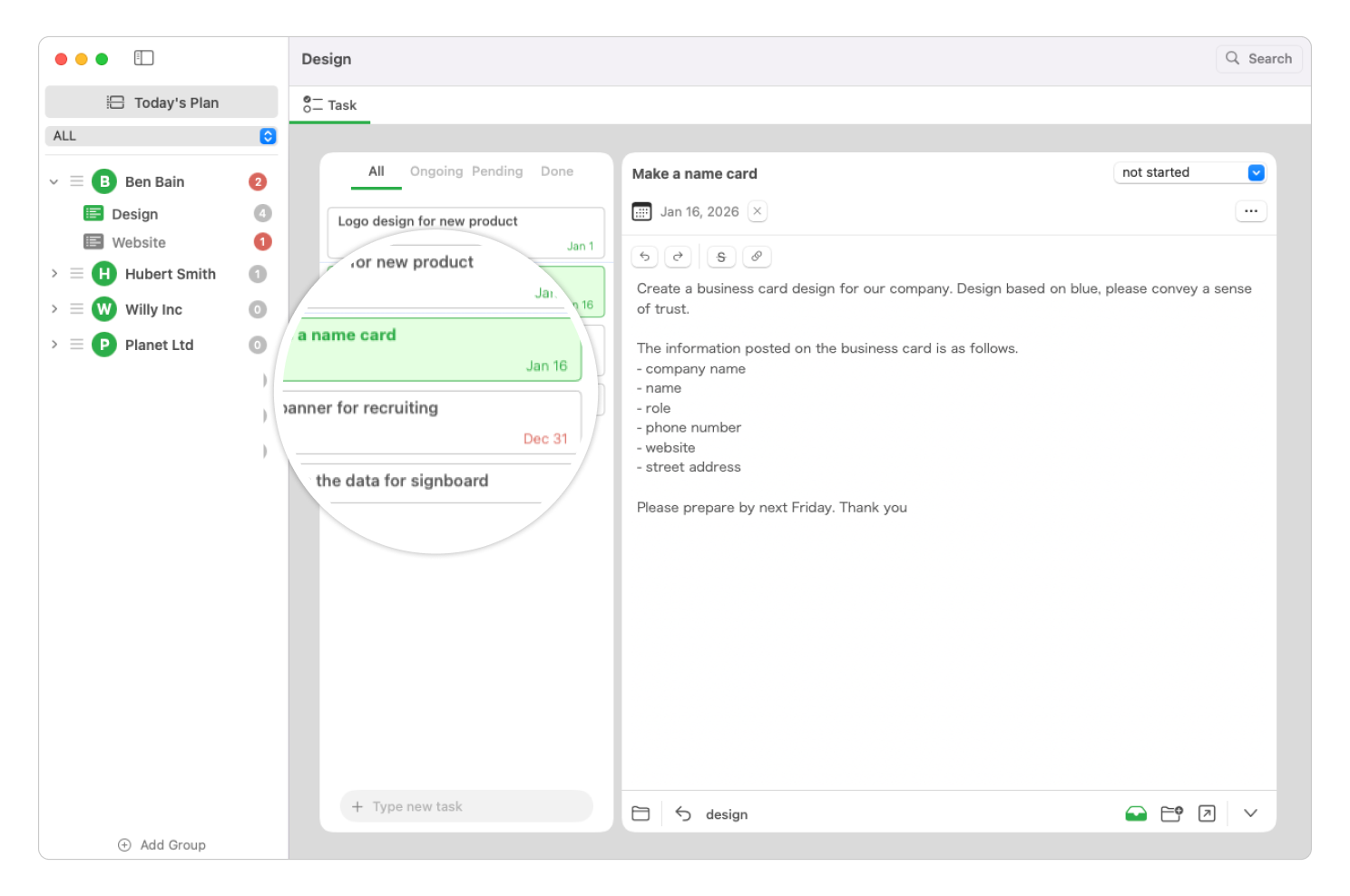
Files and Tasks Make a Pair - Reach them in 1 second!
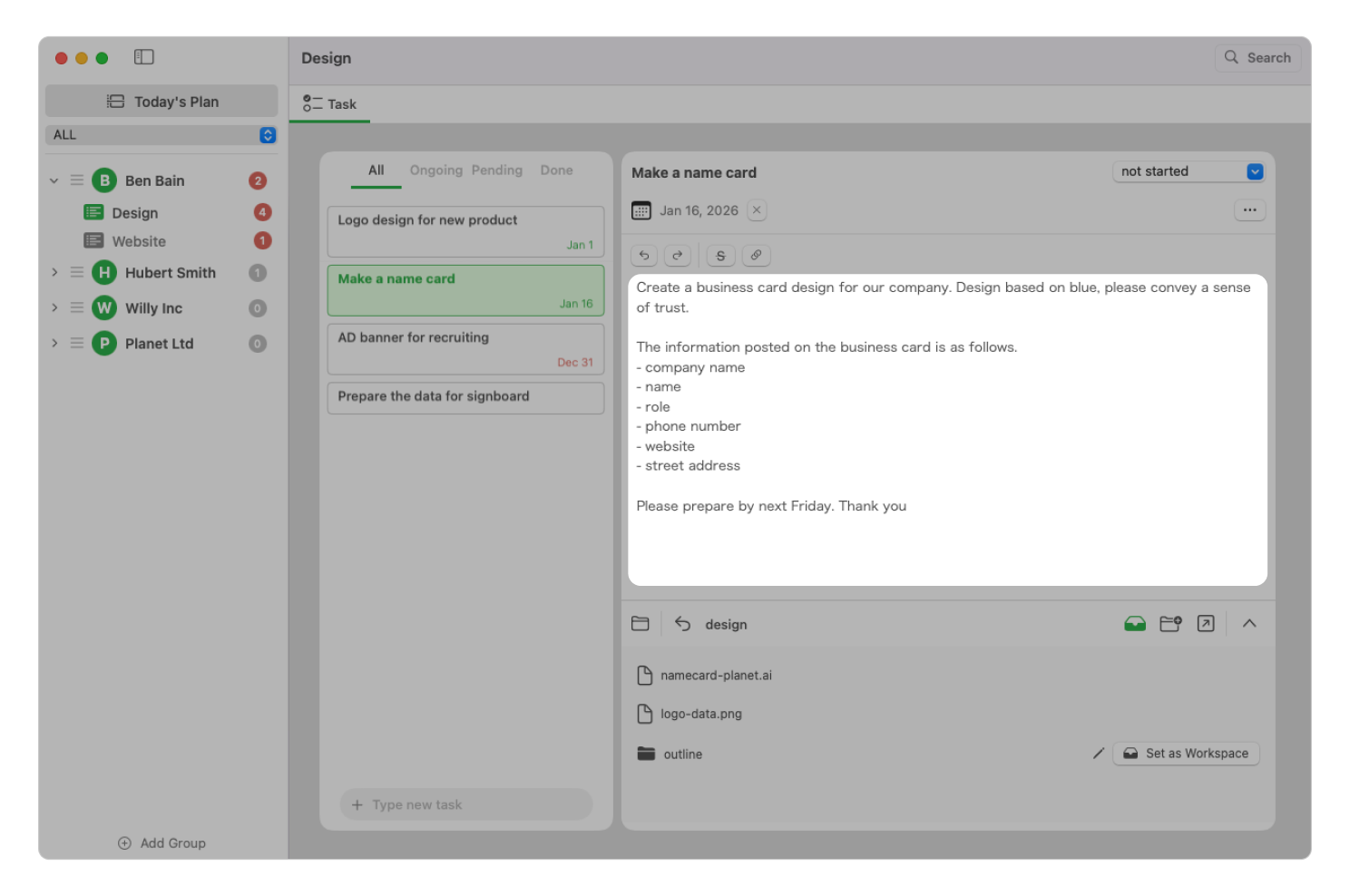
Have you ever had trouble in finding all the materials you need to complete your design tasks? If so, we have a solution for you. You can link a folder to each task in TaskDeck.
Do you want the quickest way to access a folder you are looking for? Then get the most from our Keyword Searching. No need to waste your time in gathering all the materials any more. Just immerse yourself in designing and be more creative.
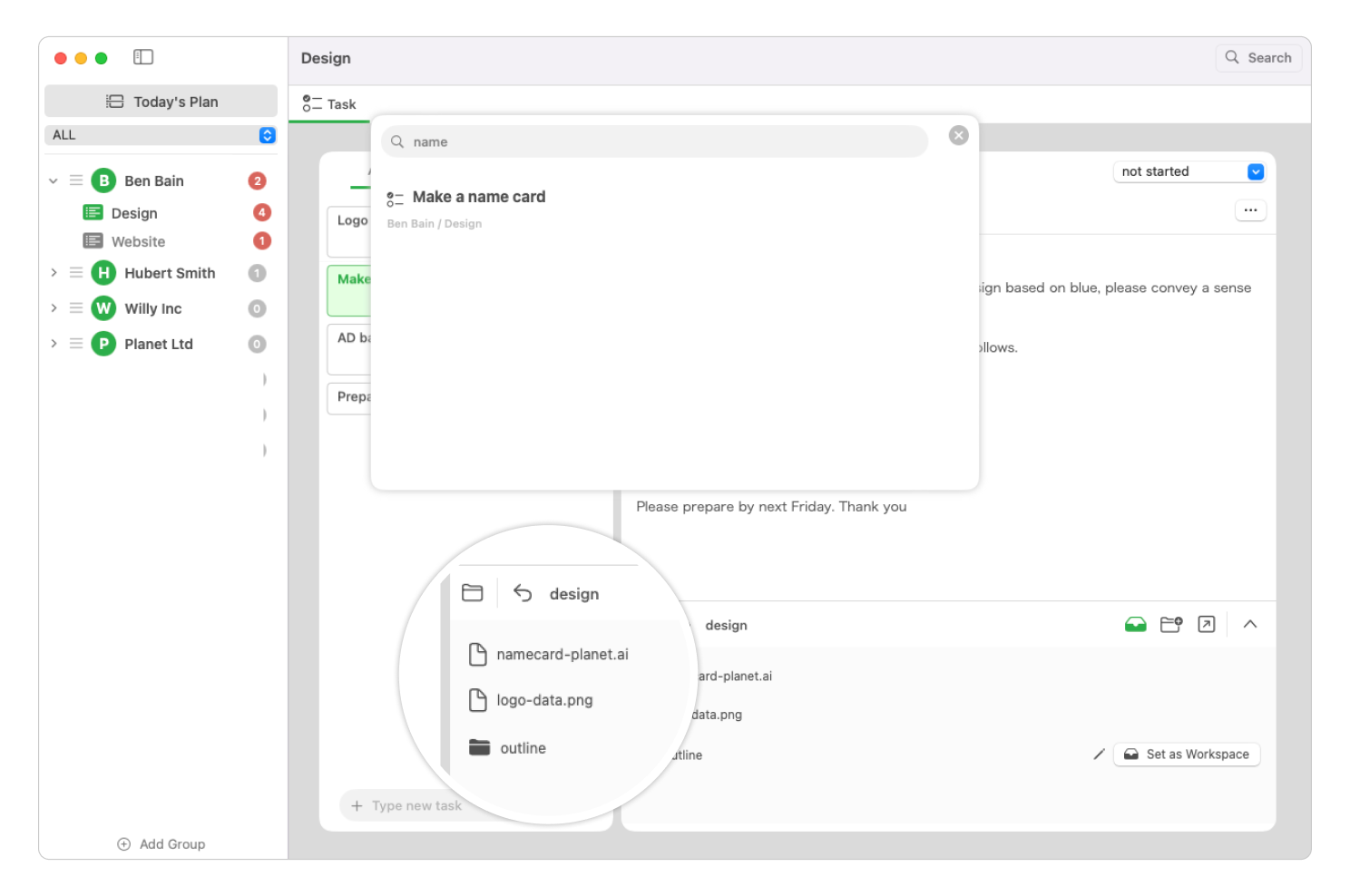
Large Notepad is Here to Help You
Client’s request details and your design ideas - Do you have lots of things to remember for your tasks? Then try our large notepad. Detailed information is always here for you. You will not miss anything, even when you are fully immersed in designing.
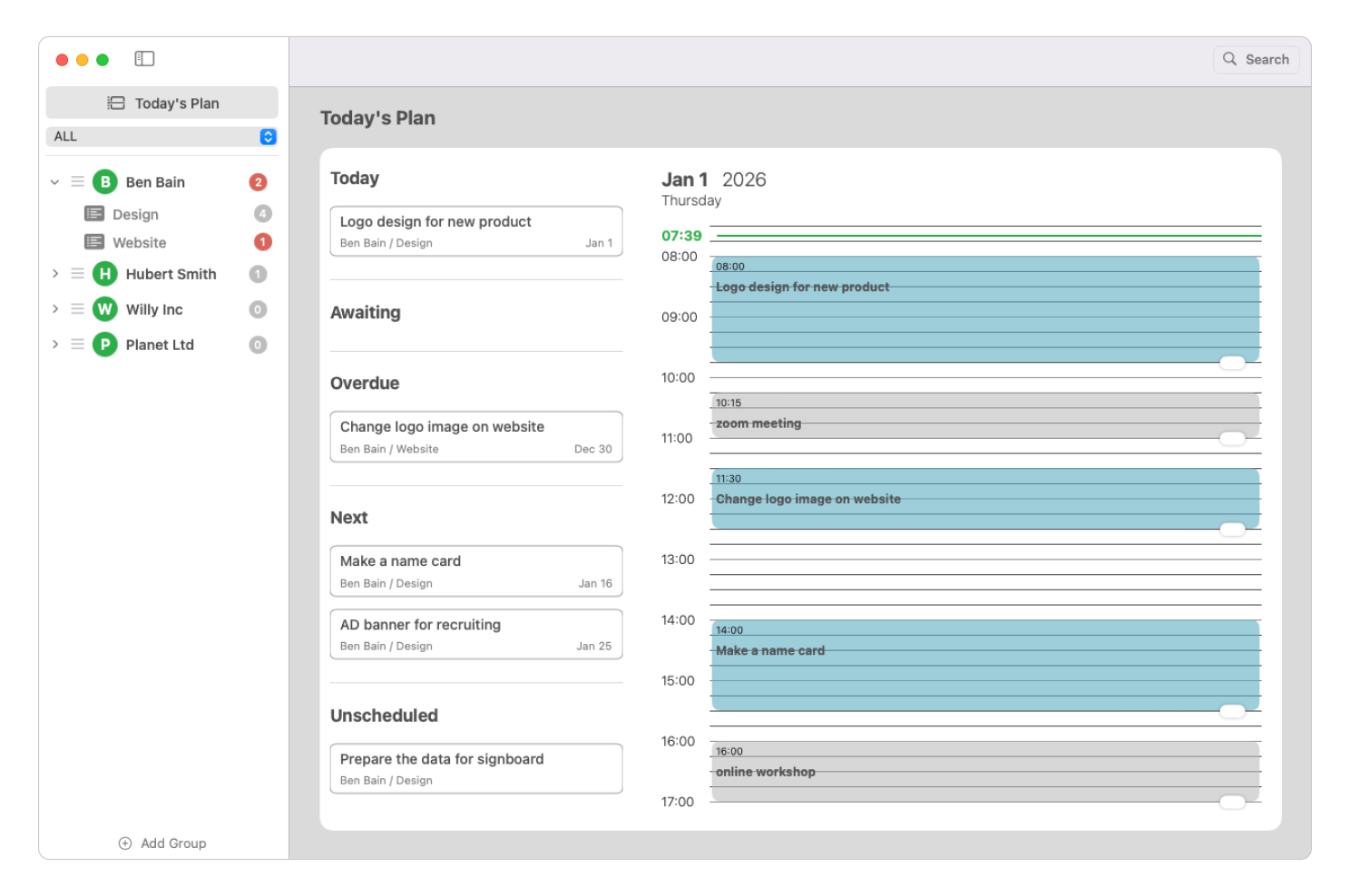
Let’s plan your day
TaskDeck features a minimalist daily timeline designed to keep you focused on today's goals. Simply drag and arrange your tasks to map out your daily timeline.
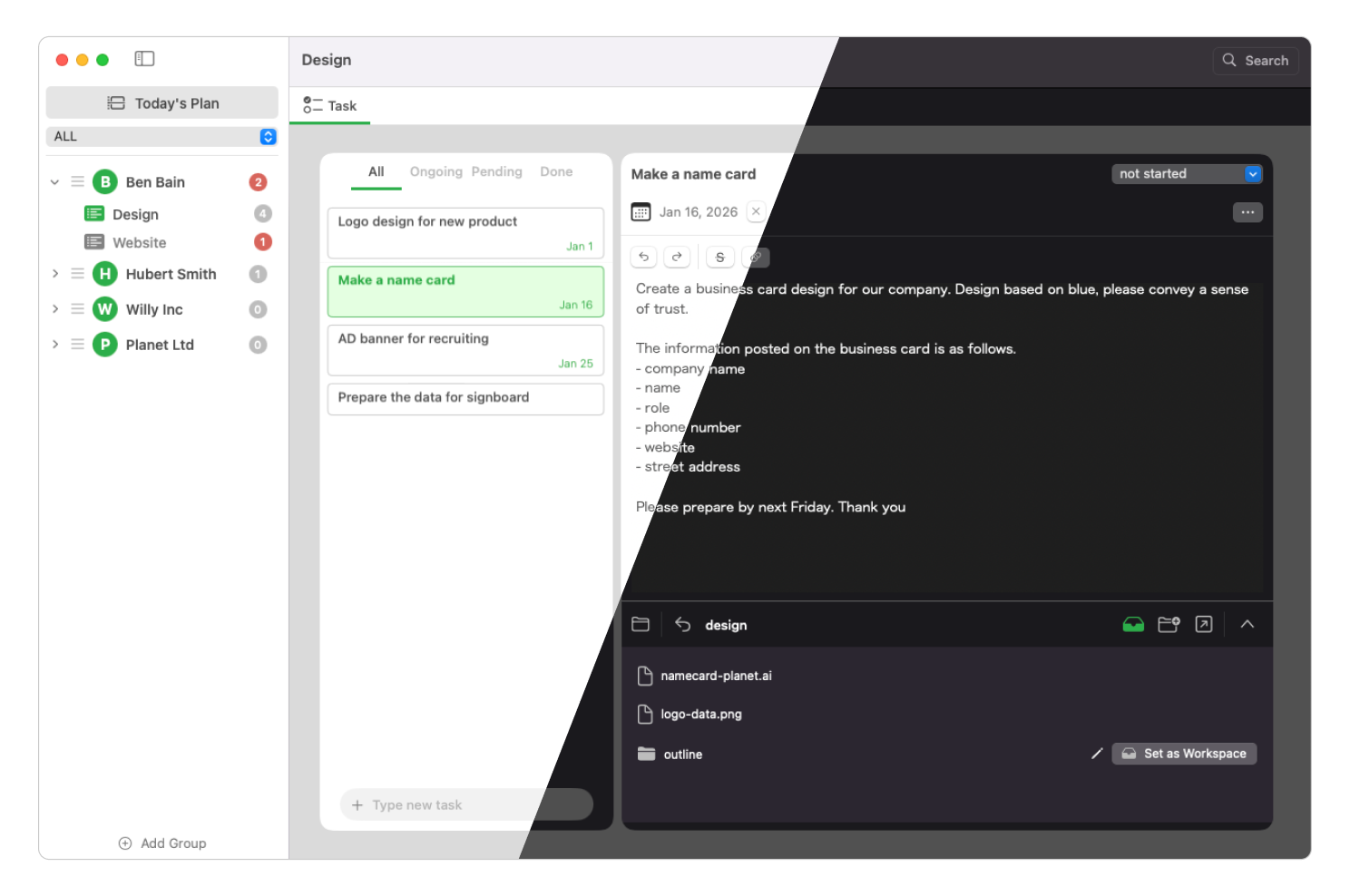
Color theme
TaskDeck supports Light or Dark color theme.
Usage in Daily Life
My typical workflow with TaskDeck.
1Create a Client Group
If I receive an order from a new client, I make a new group as the client’s name. You can also use the company’s name and project’s name for the group name.
2Make a Task Group
I will make a task group such as “Design” or “Website” in order to organize better.
3Make a New Task
After selecting the task group, I make a new task for the order.
4Keep Details in Notepad
I keep the task details on the notepad. I also copy and paste some text directly from Slack.
5Set the Due Date
To finish the work in time, I will set the due date for a task by selecting a day from the calendar.
6Link a Folder (Magic)
I make a folder for the new task and set it as a workspace. This creates the relationship between the task and the folder.
7Reach in 1 Second
After a few days, I check the task. The folder location appears automatically. I don’t need to find it manually anymore.
8Change Status to Done
I select the “done” status after finishing. It is the greatest moment.
From a Designer,
To Designers.
"I built TaskDeck because I was tired of searching for files. I wanted a tool that respected my visual workflow and didn't add clutter. It's simple, fast, and does one thing perfectly."

TAKAFUMI KAWAI
🛠️ Update history
- Improved unscheduled UI.
- Redesigned indicator for overdue tasks.
- Change the due date UI on the task list.
- Update UI to be more easy to rename a task group.
- Fix some issues.
- Support very simple markdown format.
- Improve the style of Today's plan view.
- Fix some issues.
Pay What You Want
TaskDeck is available for free, but your support helps me keep developing.
* macOS 14.0 or later required.
Get Up and Running
Simple installation process. No installers, just drag and drop.
Download
Download the latest version of TaskDeck from the button below. It's a standard ZIP file.
Get TaskDeckUnzip
Double-click the zip file to extract it.
Install
Drag TaskDeck into your Applications folder.
Launch & Trust
On the first launch, macOS might ask for permission.
Click "Open"
to
start your productivity journey.
⚠️ If you see a security warning, right-click the app and select "Open".
FAQ
Is it a subscription?
No. It's a one-time purchase. You own it forever.
What macOS version do I need?
TaskDeck works great on macOS 14 and later.
How to update?
Download the new version and replace the old one in apps folder.